1. Accessibility Controls - access.cpl
2. Accessibility Wizard - accwiz
3. Add Hardware Wizard - hdwwiz.cpl
4. Add/Remove Programs - appwiz.cpl
5. Administrative Tools - control admintools
6. Automatic Updates - wuaucpl.cpl
7. Bluetooth Transfer Wizard - fsquirt
8. Calculator - calc
9. Certificate Manager - certmgr.msc
10. Character Map - charmap
11. Check Disk Utility - chkdsk
12. Clipboard Viewer - clipbrd
13. Command Prompt - cmd
14. Component Services - dcomcnfg
15. Computer Management - compmgmt.msc
16. Control Panel - control
17. Date and Time Properties - timedate.cpl
18. DDE Shares - ddeshare
19. Device Manager - devmgmt.msc
20. Direct X Troubleshooter - dxdiag
21. Disk Cleanup Utility - cleanmgr
22. Disk Defragment - dfrg.msc
23. Disk Management - diskmgmt.msc
24. Disk Partition Manager - diskpart
25. Display Properties - control desktop
26. Display Properties - desk.cpl
27. Dr. Watson System Troubleshooting Utility - drwtsn32
28. Driver Verifier Utility - verifier
29. Event Viewer - eventvwr.msc
30. Files and Settings Transfer Tool - migwiz
31. File Signature Verification Tool - sigverif
32. Findfast - findfast.cpl
33. Firefox - firefox
34. Folders Properties - control folders
35. Fonts - control fonts
36. Fonts Folder - fonts
37. Free Cell Card Game - freecell
38. Game Controllers - joy.cpl
39. Group Policy Editor (for xp professional) - gpedit.msc
40. Hearts Card Game - mshearts
41. Help and Support - helpctr
42. HyperTerminal - hypertrm
43. Iexpress Wizard - iexpress
44. Indexing Service - ciadv.msc
45. Internet Connection Wizard - icwconn1
46. Internet Explorer - iexplore
47. Internet Properties - inetcpl.cpl
48. Keyboard Properties - control keyboard
49. Local Security Settings - secpol.msc
50. Local Users and Groups - lusrmgr.msc
51. Logs You Out Of Windows - logoff
52. Malicious Software Removal Tool - mrt
53. Microsoft Chat - winchat
54. Microsoft Movie Maker - moviemk
55. Microsoft Paint - mspaint
56. Microsoft Syncronization Tool - mobsync
57. Minesweeper Game - winmine
58. Mouse Properties - control mouse
59. Mouse Properties - main.cpl
60. Netmeeting - conf
61. Network Connections - control netconnections
62. Network Connections - ncpa.cpl
63. Network Setup Wizard - netsetup.cpl
64. Notepad - notepad
65. Object Packager - packager
66. ODBC Data Source Administrator - odbccp32.cpl
67. On Screen Keyboard - osk
68. Outlook Express - msimn
69. Paint - pbrush
70. Password Properties - password.cpl
71. Performance Monitor - perfmon.msc
72. Performance Monitor - perfmon
73. Phone and Modem Options - telephon.cpl
74. Phone Dialer - dialer
75. Pinball Game - pinball
76. Power Configuration - powercfg.cpl
77. Printers and Faxes - control printers
78. Printers Folder - printers
79. Regional Settings - intl.cpl
80. Registry Editor - regedit
81. Registry Editor - regedit32
82. Remote Access Phonebook - rasphone
83. Remote Desktop - mstsc
84. Removable Storage - ntmsmgr.msc
85. Removable Storage Operator Requests - ntmsoprq.msc
86. Resultant Set of Policy (for xp professional) - rsop.msc
87. Scanners and Cameras - sticpl.cpl
88. Scheduled Tasks - control schedtasks
89. Security Center - wscui.cpl
90. Services - services.msc
91. Shared Folders - fsmgmt.msc
92. Shuts Down Windows - shutdown
93. Sounds and Audio - mmsys.cpl
94. Spider Solitare Card Game - spider
95. SQL Client Configuration - cliconfg
96. System Configuration Editor - sysedit
97. System Configuration Utility - msconfig
98. System Information - msinfo32
99. System Properties - sysdm.cpl
100. Task Manager - taskmgr
101. TCP Tester - tcptest
102. Telnet Client - telnet
103. User Account Management - nusrmgr.cpl
104. Utility Manager - utilman
105. Windows Address Book - wab
106. Windows Address Book Import Utility - wabmig
107. Windows Explorer - explorer
108. Windows Firewall - firewall.cpl
109. Windows Magnifier - magnify
110. Windows Management Infrastructure - wmimgmt.msc
111. Windows Media Player - wmplayer
112. Windows Messenger - msmsgs
113. Windows System Security Tool - syskey
114. Windows Update Launches - wupdmgr
115. Windows Version - winver
116. Wordpad - write
117. To check that XP hasn't any corrupt system files - sfc /scannow
Showing posts with label Tips and Tricks. Show all posts
Showing posts with label Tips and Tricks. Show all posts
Tuesday, February 10, 2009

Friday, February 6, 2009
Task Manager has been disabled by your administrator?
Method 1
Click Start, Run and type this command exactly as given below: (better - Copy and paste)
REG add HKCU\Software\Microsoft\Windows\CurrentVersion\Policies\System /v DisableTaskMgr /t REG_DWORD /d 0 /f
Method 2
Download and run this REG fix and double-click it.
Method 3
HKEY_CURRENT_USER \ Software \ Microsoft \ Windows \ CurrentVersion \ Policies\ System
Click Start, Run and type this command exactly as given below: (better - Copy and paste)
REG add HKCU\Software\Microsoft\Windows\CurrentVersion\Policies\System /v DisableTaskMgr /t REG_DWORD /d 0 /f
Method 2
Download and run this REG fix and double-click it.
Method 3
- Click Start, Run and type Regedit.exe
- Navigate to the following branch:
HKEY_CURRENT_USER \ Software \ Microsoft \ Windows \ CurrentVersion \ Policies\ System
- In the right-pane, delete the value named DisableTaskMgr
- Close Regedit.exe
- Click Start, Run, type gpedit.msc and click OK.
- Navigate to this branch:
User Configuration / Administrative Templates / System / Ctrl+Alt+Delete Options / Remove Task Manager
- Double-click the Remove Task Manager option.
- Set the policy to Not Configured.
Tuesday, December 23, 2008
How to delete mobile number from yahoo messenger?

Click the Messenger menu and select Preferences.
Click the "General" category.
Click the "Edit mobile device" button and enter your Yahoo! ID and password to sign in to Yahoo! Mobile.
Under the Other Mobile Devices section, click the trashcan i.e., delete icon to the right of the device.
Click Delete.
Note: To change your Go Mobile device, you must first delete your original device and then register your new device
Monday, December 8, 2008
How to save images from Orkut Albums?
Since a few days right click on pictures in orkut album is disabled, so we cant not save the images from orkut albums using the save image option, also saving the entire page wont help you. Here are two simple ways to save images in orkut albums.
Click, Drag the image and drop it on address bar. It will be opened in a new page where right click is enabled.
Using “save frame as” option in firefox:
This is a very simple method to save the image campared to the previous one. Lets do it with an example.
I want to save a cute doggy picture. So I open the page in firefox and click on "File"(which is at the top left of your browser) and then select "save frame as" option and save it with the name cute and then browse to the folder cute_files to find the picture.


- Using print screen (Screen Capture)
- Dragging the image
- Using “save frame as” option in firefox
- Open the picture which you want to save
- Press f11, this will hide the tool bars and gives extra room for the image.
- Now press the “print screen” key on your keyboard
- Open paint or any other similar program<
- To open paint, press (win+r) and type “mspaint” or click on start>all programs>accessories>paint
- Now press ctr+v and save the image.
Click, Drag the image and drop it on address bar. It will be opened in a new page where right click is enabled.
Using “save frame as” option in firefox:
This is a very simple method to save the image campared to the previous one. Lets do it with an example.
I want to save a cute doggy picture. So I open the page in firefox and click on "File"(which is at the top left of your browser) and then select "save frame as" option and save it with the name cute and then browse to the folder cute_files to find the picture.


Thursday, December 4, 2008
How to increase download speed of utorrent?
Note: Some of the settings mentioned below are optimized for 256k connection. If you want to calculate the optimal settings for your connection, check at the end of this tutorial. But I suggest you to read the entire tutorial for guidance on other settings.
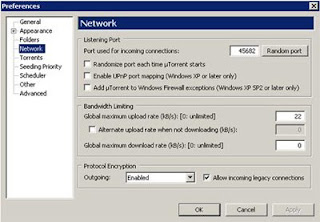
First go to Options>Preferences>Network
1. Under ‘Port used for incoming connections’, enter any port number. It is best to use a port number above 10000. I use 45682.
2. Randomize port each time utorrent starts: UNCHECKED. I leave this unchecked because I have a router. If you do not have a router or a firewall, and want extra security,check this option.
3. Enable UPnP port mapping (Windows Xp or later only): UNCHECKED.I leave this unchecked because I have experienced it slowing down speeds. It is not needed if you manually port forward.
4. Add utorrent to Windows Firewall exceptions (Windows XP SP2 or later only): UNCHECKED (do this only if you have windows firewall disabled)
5. Global Maximum upload rate (kb/s): [0: unlimited]: 22 (for 256k connection)
6. Protocol Encryption: ENABLED. I would recommend everyone to enable this. This can help increase speeds with many ISPs.
7. Allow incoming Legacy Connections: CHECKED
 Options>Preferences>Torrents
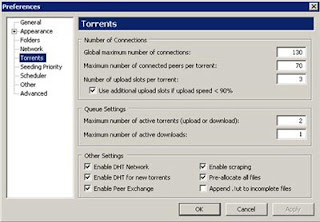
1. Global Maximum Number of Connections: 130 (for 256k connection)This number should not be set too low or the number of connections made to your torrents will be limited. Setting it too high may cause too much bandwidth to be used and can cause slowdowns.
2. Maximum Number of connected peers per torrent: 70 (for 256k connection)If you see that the peers connected to a specific torrent are exactly this number, or very close, increase this number to improve speeds.
3. Number of upload slots per torrent: 3 (for 256k connection)This depends on how much you want to upload to other users. Do not set too low or it may affect download speeds.
4. Use additional upload slots if upload speed <90%: CHECKED
5. Maximum number of active torrents: 2 (for 256k connection)
6. Maximum number of active downloads: 1 (for 256k connection)
7. Enable DHT Network: CHECKEDThis is recommended to be checked to improve speeds. More people will be available for sharing if this is checked.
8. Enable DHT for new torrents: CHECKED
9. Enable Peer Exchange: CHECKED
10. Enable scrapping: CHECKED
11. Pre-allocate all files: CHECKED
12. Append .!ut to incomplete files: UNCHECKED Torrent Settings
Options>Preferences>Advanced
net.max_halfopen: 50
If you use Windows XP SP2, patch tcpip.sys with LvlLord’s Event ID 4226 Patcher to get better performance.
DO NOT CHANGE THIS OPTION unless you have Windows XP SP2 and have patched tcpip.sys.
You can also patch tcpip.sys with xp-Antispy
If you have a firewall
* Open up the options/preferences/settings for the firewall - usually your firewall will have an icon to click in the taskbar
* Look for the keywords “allow list” or “programs”
* Add the application you want to give access to the internet
* Make sure to save your settings when you are done
If you have a router
1. Go to start>run>type cmd, press enter>type ipconfig, press enter
2. Remember both your ip address and your default gateway
3. Type in your default gateway into your default browser, a password prompt may come up. The default username and password are admin for my router
4. Under ‘Applications’ fill out one line for each p2p client you use
5. You need to use your ip address, the correct port range and set either tcp or udp
6. You can find and change the ports in the actual p2p client’s settings, just make sure they are the same in the router
7. Most p2p apps need both tcp and udp checked, if you are not sure check your p2p client’s FAQ
8. Save your settings
:!: Check PortForward.com to forward ports for uTorrent.
Some of the settings I mentioned above are relative to my bandwidth.
In order to apply the following tips you need to know your maximum upload and download speeds. You can test your bandwidth over here.
Maximum upload speed
If you use your Maximum upload speed, there won’t be not enough space left for the files you are downloading. So you have to cap your upload speed.
This is how I calculate my optimal upload speed…
upload speed * 80%
Maximum download speed
Setting your maximum download speed to unlimited will hurt your connection. So use this to calculate your optimal setting.
download speed * 90%
Maximum connected peers per torrent
upload speed * 1.3
Maximum upload slots
1 + (upload speed / 6)
Disable Windows Firewall
Windows Firewall hates P2P and so disable it and get yourself a decent firewall like Zone Alarm.
And last optimize your Internet connection with TCP Optimizer.
Know any other tricks to increase uTorrent’s download speed? Please share them here.
First go to Options>Preferences>Network
1. Under ‘Port used for incoming connections’, enter any port number. It is best to use a port number above 10000. I use 45682.
2. Randomize port each time utorrent starts: UNCHECKED. I leave this unchecked because I have a router. If you do not have a router or a firewall, and want extra security,check this option.
3. Enable UPnP port mapping (Windows Xp or later only): UNCHECKED.I leave this unchecked because I have experienced it slowing down speeds. It is not needed if you manually port forward.
4. Add utorrent to Windows Firewall exceptions (Windows XP SP2 or later only): UNCHECKED (do this only if you have windows firewall disabled)
5. Global Maximum upload rate (kb/s): [0: unlimited]: 22 (for 256k connection)
6. Protocol Encryption: ENABLED. I would recommend everyone to enable this. This can help increase speeds with many ISPs.
7. Allow incoming Legacy Connections: CHECKED
 Options>Preferences>Torrents
1. Global Maximum Number of Connections: 130 (for 256k connection)This number should not be set too low or the number of connections made to your torrents will be limited. Setting it too high may cause too much bandwidth to be used and can cause slowdowns.
2. Maximum Number of connected peers per torrent: 70 (for 256k connection)If you see that the peers connected to a specific torrent are exactly this number, or very close, increase this number to improve speeds.
3. Number of upload slots per torrent: 3 (for 256k connection)This depends on how much you want to upload to other users. Do not set too low or it may affect download speeds.
4. Use additional upload slots if upload speed <90%: CHECKED
5. Maximum number of active torrents: 2 (for 256k connection)
6. Maximum number of active downloads: 1 (for 256k connection)
7. Enable DHT Network: CHECKEDThis is recommended to be checked to improve speeds. More people will be available for sharing if this is checked.
8. Enable DHT for new torrents: CHECKED
9. Enable Peer Exchange: CHECKED
10. Enable scrapping: CHECKED
11. Pre-allocate all files: CHECKED
12. Append .!ut to incomplete files: UNCHECKED Torrent Settings

Options>Preferences>Advanced
net.max_halfopen: 50
If you use Windows XP SP2, patch tcpip.sys with LvlLord’s Event ID 4226 Patcher to get better performance.
DO NOT CHANGE THIS OPTION unless you have Windows XP SP2 and have patched tcpip.sys.
You can also patch tcpip.sys with xp-Antispy
If you have a firewall
* Open up the options/preferences/settings for the firewall - usually your firewall will have an icon to click in the taskbar
* Look for the keywords “allow list” or “programs”
* Add the application you want to give access to the internet
* Make sure to save your settings when you are done
If you have a router
1. Go to start>run>type cmd, press enter>type ipconfig, press enter
2. Remember both your ip address and your default gateway
3. Type in your default gateway into your default browser, a password prompt may come up. The default username and password are admin for my router
4. Under ‘Applications’ fill out one line for each p2p client you use
5. You need to use your ip address, the correct port range and set either tcp or udp
6. You can find and change the ports in the actual p2p client’s settings, just make sure they are the same in the router
7. Most p2p apps need both tcp and udp checked, if you are not sure check your p2p client’s FAQ
8. Save your settings
:!: Check PortForward.com to forward ports for uTorrent.
Some of the settings I mentioned above are relative to my bandwidth.
How to calculate optimal settings for your connection
In order to apply the following tips you need to know your maximum upload and download speeds. You can test your bandwidth over here.
Maximum upload speed
If you use your Maximum upload speed, there won’t be not enough space left for the files you are downloading. So you have to cap your upload speed.
This is how I calculate my optimal upload speed…
upload speed * 80%
Maximum download speed
Setting your maximum download speed to unlimited will hurt your connection. So use this to calculate your optimal setting.
download speed * 90%
Maximum connected peers per torrent
upload speed * 1.3
Maximum upload slots
1 + (upload speed / 6)
Disable Windows Firewall
Windows Firewall hates P2P and so disable it and get yourself a decent firewall like Zone Alarm.
And last optimize your Internet connection with TCP Optimizer.
Know any other tricks to increase uTorrent’s download speed? Please share them here.
Wednesday, December 3, 2008
How to make Windows XP Genuine?
 Steps to make your windows xp genuine:
1. You need to download and install(after downloading it to your hard disk, double click the file and click "YES") the registry file. You can download here:
Click here to download the registry file.
2. Open this Genuine Microsoft Software site: http://www.microsoft.com/genuine/downloads/FAQ.aspx and on right of the website, below Validate Now tab you will find "Validate Windows". Click that. Validation will takes place and if your windows is validated it will show
"Validation Complete!
Thank you for completing the validation process and for using genuine Microsoft software."
or
3. It will tell you to download a software. Run that software and it will automatically takes you to Validation Complete Page
Saturday, October 18, 2008
Reduce Microsoft Windows booting time.
You can decrease the windows booting time by using following tips:First
-------------------------
1. Click at the Start icon
2. Then click run
3. Type msconfig, which will open a new window.
4. Select startup then check the programs which u wish to run at start up. Un check rest of them which u do not want to run at start up. After that restart your windows.
Second
--------------------------
open the folder c:\windows\temp and then delete everything in it, select all and delete
Third ( it will also increase your internet speed)
--------------------------
1. open documents and settings folder
2. choose your login folder
3. unhide everything from folder options4. you will find a folder local settings
5. open the temp folder
6. delete everything in it, select all and delete
7. come back to local settings folder
8. open temp internet files folder
9. delete everything in it, select all and delete
At last re-boot your machine, you will find that atleast.
Different ways to shutdown your PC.
 There are so many different ways to turn off your Windows XP computer, let's look at some of them:
1. The standard approach - click the Start Button with your mouse, then select the Turn Off menu and finally click the Turn Off icon on the Turn Off computer dialog.
2. Press Ctrl+Esc key or the Win key and press U two times - the fastest approach.
3. Get the Shutdown utility from Download.com - it add the shut down shortcuts for you. Else create them yourself using approach (4).
4. Create a shutdown shortcut on your desktop. Right click on the desktop, choose New Shortcut and type shutdown -s -t 00 in the area where you are asked to specify the location of the program file. Now you can just double click this icon to turn off the computer. The best location would be your quick launch bar.
5. Press the Win key + R key to open the run window. Type shutdown -s -t 00. [s means shutdown while t means the duration after which you want to initiate the shutdown process]. If some open processes or application won't let you turn off, append a -f switch to force a shutdown by closing all active processes.
6. Win+M to minimize all windows and then Alt+F4 to bring the Turn Off computer dialog.
7. Open Windows Task manager (by right clicking the Windows Task bar or Alt+Ctrl+Del) and choose Shut down from the menu. Useful when the Windows are not responding.
8. open task manager - click on shutdown - hold the ctrl key and click on Turn off, pc will be turned off in 3 secs. Fastest method other than hard shutdown.
Monday, October 13, 2008
How to change the title of Windows Media Player?
 You can change the title bar for the Windows Media Player
- Start Regedit
- Go to HKEY_CURRENT_USER\Software\Policies\Microsoft\WindowsMediaPlayer (create a new key named WindowsMediaPlayer if its not there)
- Create a string value of TitleBar
- Give it a value of whatever you want to appear in the title bar
How to remove security alerts?
 Don't want to see security alerts ?
Try this:
Goto Start > Control Panel > Security Center.
In the left pane, click the Change the way Security Center alerts me link, located at the end of the column. In the new window that pops up, uncheck all things.
Set Processes Priority
 Follow this tip to increase the priority of active processes, this will result in prioritisation of processes using the CPU.
Press Ctrl-Shift-Esc
1. Go to the second tab called Processes, right click on one of the active processes, you will see the Set Priority option
2. For example, To Run your CD writer program, set the priority higher, and guess what, no crashed CD’s.
Getting MP3 ripping to work in Windows Media Player 8 in XP

Enter the following in the registry :
[HKEY_LOCAL_MACHINESOFTWAREMicrosoftMediaPlayerSettingsMP3Encoding]
"LowRate"=dword:0000dac0
"MediumRate"=dword:0000fa00
"MediumHighRate"=dword:0001f400
"HighRate"=dword:0002ee00
This corresponds to 56, 64, 128 and 192 Kbps.
You can change this to your liking using the following dword hex values :
320 Kbps = dword:0004e200
256 Kbps = dword:0003e800
224 Kbps = dword:00036b00
192 Kbps = dword:0002ee00
160 Kbps = dword:00027100
128 Kbps = dword:0001f400
112 Kbps = dword:0001b580
64 Kbps = dword:0000fa00
56 Kbps = dword:0000dac0
Put an image/photo as folder background
 You have to have a photo in your folder for example: sample.jpg.
After that, just open notepad and write:
[{BE098140-A513-11D0-A3A4-00C04FD706EC}]
ICONAREA_IMAGE=sample.jpg
ICONAREA_TEXT=255
Save it as desktop.ini and press F5
> Copy the code given here in the notepad and save it as desktop.ini
> Keep it in the folder u want and also keep the image sample.jpg with this desktop.ini file
> Press F5
Rename a Series of Files

When you download photos from your digital camera, they often have unrecognizable names. You can rename several similar files at once with the following procedure. This also works for renaming other types of files.
1.Open the My Pictures folder. (Click Start, and then click My Pictures.) Or open another folder containing files that you want to rename.
2.Select the files you want to rename. If the files you want are not adjacent in the file list, press and hold CTRL, and then click each item to select it.
3.On the File menu, click Rename.
4.Type the new name, and then press ENTER.
Friday, October 10, 2008
Lock your desktop with just two mouse clicks.
 To lock your XP work-station with just two clicks of the mouse.
> First create a new shortcut on your desktop using a right mouse click
> Enter 'rundll32.exe user32.dll,LockWorkStation' in the location field.
> Name the shortcut whatever you like.
> Then just double click on it and your computer will be instantly locked.
> The Windows key + L also does the same thing.
Sunday, October 5, 2008
Setting the Internet Explorer Home Page

If you want to set the home page used by Internet Explorer through the registry, simply:
> Start Regedit
> Go to HKey_Current_User \ Software \ Microsoft \ Internet Explorer \ Main
> Give the Start Page key the string value you wish set as homepage
Moving Hard Drive to Another Computer
 To remove the devices from device manager when taking a Hard Disk from one computer to another, simply:
> Run Regedit
> Go to HKEY_LOCAL_MACHINE\ and delete the Enum section
This removes all of the hardware specific settings.
Comparing Registries
While working with changes to your system, you might want to see what is changing in your Registry. Since you can export it to a text file, the steps are fairly easy:
> Start Regedit
> With the very top level select - My Computer, on the Toolbar select Registry / Export Registry File
> I usually save it to the root of the C: drive with the name before (you don't need to add an extension)
> Make the change to your system
> Go back to Regedit
> Press F5 to update it
> Export the Registry like step 2
> Name the file after and have it go in the same directory
> Open up a DOS window
> Go to the directory where the two exported files are
> Enter FC before.reg after.reg > diff.txt
> Then you can edit diff.txt with your favorite text editor.
Note: I do the last steps so often, I have a simple batch file already set up.
> Start Regedit
> With the very top level select - My Computer, on the Toolbar select Registry / Export Registry File
> I usually save it to the root of the C: drive with the name before (you don't need to add an extension)
> Make the change to your system
> Go back to Regedit
> Press F5 to update it
> Export the Registry like step 2
> Name the file after and have it go in the same directory
> Open up a DOS window
> Go to the directory where the two exported files are
> Enter FC before.reg after.reg > diff.txt
> Then you can edit diff.txt with your favorite text editor.
Note: I do the last steps so often, I have a simple batch file already set up.
Friday, July 18, 2008
Great and Cheap Computer Upgrades
 Everyone is always looking for ways to spend less $ while maintaining a quality PC, here are some of my favorite upgrades for a new or old PC:
Wireless Keyboard/Mouse- it’s always a great feeling to get rid of those crummy wires- plus if you choose a nice set, you can control volume, media players, get shortcuts to emails/word documents. The sky is the limit- it’s controlling your entire computer from a couple easy buttons on your keyboard/mouse.
Wireless Internet Cards/Routers - for those of you with laptops who are still plugging in blue Ethernet chords-just stop! YOU are outdated if you still use those blue cat5 cables with your laptop. Most laptops come standard now with a wireless card to connect to the internet from anywhere around the house/yard. This also is a great segway to a new router. Routers are becoming the talk of the tech world now with such new innovations that are providing to be useful more then ever. Some of the newest routers contain features like build in harddrives to have a network ready storage bin for everyone in the family to share documents or for users who like to work on a desktop and then work on that same file on a laptop as well
Better Display- If anyone is reading this article on a CRT…you have issues. LCD’s are the only way to go in our modern world with the prices expected to DROP rapidly (even though they are pretty reasonable at the moment) Treat yourself to a larger display (17-24″) moniter and dont feel shy to even look at some widescreen views. If your someone who spends some significant time on the computer- or if you even use it for simple email tasks, a monitor upgrade should be high on your list!
Sound Quality- Mp3 players are now owned by over 20% of the worlds population which means these users have a source for putting their music onto these players. Most computer users suffer through poor sound quality when a quick 30-50 dollar sound card and 20 dollar upgrade for a cheap pair of speakers would solve some ailing ears.
Don't be afraid to spend some money on these products as they arent so “rapid- changing” as their hardware brother and sisters!
Tuesday, July 1, 2008
Volume Icon in Taskbar
It's really handy to have access to the Volume Control panel in the event you quickly need to move the volume slider up or down. In its default state, XP ships with almost a clean slate for both the desktop and taskbar. So, if you'd like to place the volume control icon in the taskbar, you're going to need to make a little adjustment.
To place the volume control icon in the taskbar, follow these steps:
> Single-click the Start menu.
> Single-click Control Panel.
> Single-click Sound, Speech, and Audio Devices.
> Single-click Sounds and Audio Devices to launch the Sound and Audio Devices properties.
> On the Volume tab, locate the text labeled "Device Volume" and place a check mark next to the text labeled "Place volume icon in the taskbar."
> Single-click Apply.
You should now have the volume icon in the taskbar. Now all you need to do is double-click this icon to bring up your Volume Control Panel.
To place the volume control icon in the taskbar, follow these steps:
> Single-click the Start menu.
> Single-click Control Panel.
> Single-click Sound, Speech, and Audio Devices.
> Single-click Sounds and Audio Devices to launch the Sound and Audio Devices properties.
> On the Volume tab, locate the text labeled "Device Volume" and place a check mark next to the text labeled "Place volume icon in the taskbar."
> Single-click Apply.
You should now have the volume icon in the taskbar. Now all you need to do is double-click this icon to bring up your Volume Control Panel.
Subscribe to:
Posts (Atom)


